Display Group Setup
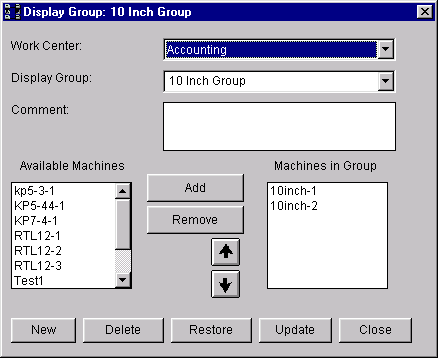
The Display Group Setup window lets you add, change or delete display groups. Defining display groups is optional although this parameter offers you a way to group your machines into logical work groups for later monitoring and selection on multi-machine windows within PlantStar Panorama Monitor (for example, the Exception Summary window).
Display groups are defined by work centers. Work centers define the shift schedule that a machine follows. Therefore, each machine within a display group has the same shift schedule.
Existing display groups are displayed upon the opening of this window. On the right-hand side is a list of machines currently assigned to the "group" visible in the Display Group field. On the left-hand side of the window is a list of existing machines within the selected work center. Any of the machines in this list can be added to the current display group. The up and down arrows on the window move a highlighted machine up or down the list, changing the order in which machines are displayed on all multi-machine windows.
NOTE: A machine can be exist in multiple display group in any one work center.
Where can you find it?
| · | Choose the Groups menu on the main Shop Configuration window.
|
| · | Choose the Display Group Setup option.
|
What do you want to know about?
| · | Changing Display Groups
|
| · | Creating Display Groups
|
| · | Deleting Display Groups
|
| · | Adding Machines to a Display Group
|
| · | Removing Machines from a Display Group
|
| · | Ordering Machines in the List
|
| · | Saving your Changes
|
| · | Undoing your Changes
|
| · | Closing the Window
|