logging in an employee
Users can login an Employee from the Labor Status screen, as well as the shop floor DCM's. To login an Employee, click the Login button at the bottom of the screen. Once clicked, you will be presented the following login dialog:
From this dialog, enter a valid employee id. Employee's are defined in the Shop Floor Configuration program. If the employee id was invalid, the users would be presented with a pop up message "Invalid Employee". Once a valid employee id was entered, you will be prompted for a machine that you wish to logging into.
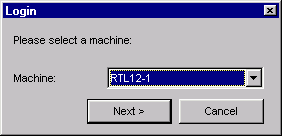
From this dialog, you can select a machine from the drop down list. The drop down list consist only of the machines which belongs to the work center an employee is assigned. Employee-Work Center relationships are defined at the Labor Setup window in the Shop Floor Configuration program. Once a machine is selected, the you will be prompted for a labor category you wish to logging into.

From this dialog you can select a labor category from the drop down list. The drop down list consist only of the categories that have been assigned to the Employee Id entered. Employee-Labor Category definitions are defined in the Shop Floor Configuration program. Once a labor category has been selected, you can click the "Finish" button which will log you into the system.
NOTE: To Cancel out of the login process, click the "Cancel" button.
NOTE: No matter what shift is currently displayed in the shift selection, the employee will always be logged into the current shift. Employees can only be added to previous shifts from the Labor History window.